Ultimath ships as a one-click Claude Desktop extension (.mcpb).
You'll need the desktop app and your Ultimath API key — grab both first, then follow
the steps. The whole thing takes under a minute.
-
1
Download the installer
On the Get your key page, click Get my free key, then Download one-click installer to save
ultimath.mcpb. Keep your key somewhere safe — it's shown only once. -
2
Open Advanced extension settings
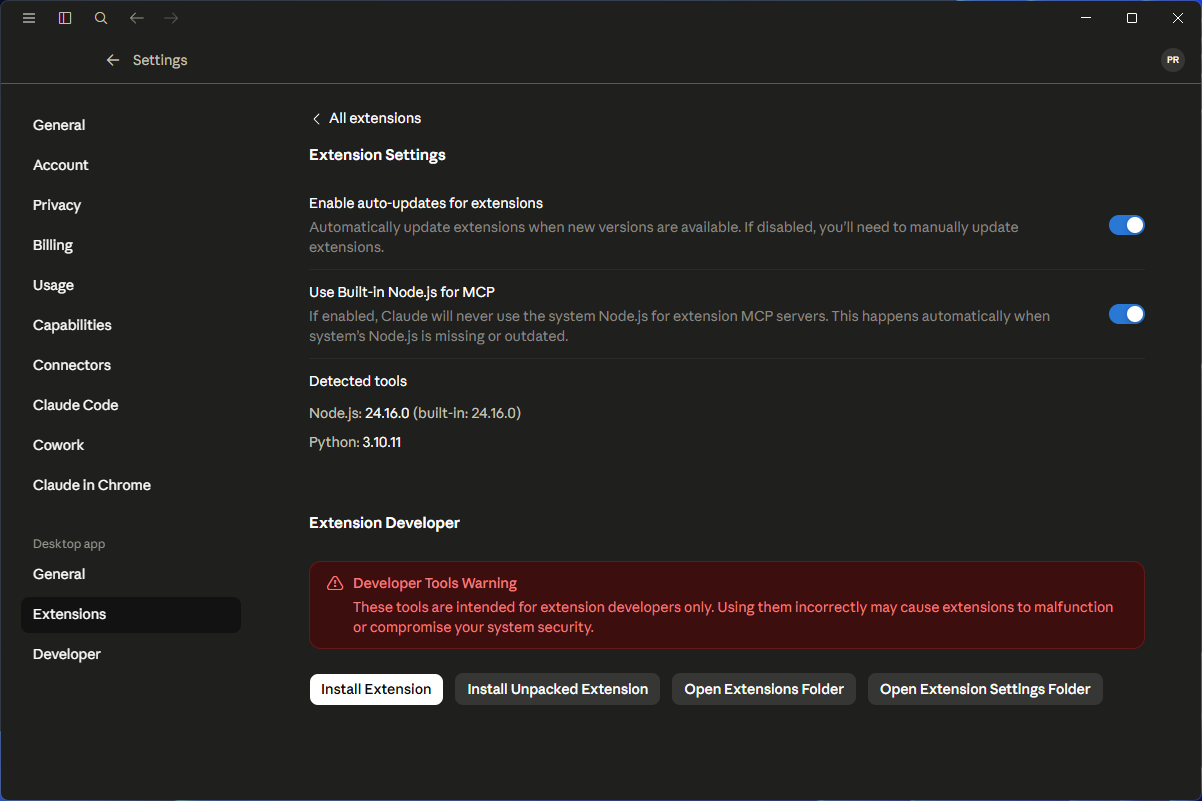
In Claude Desktop, go to Settings → Extensions → Advanced settings, then click Install Extension.
-
3
Pick the
ultimath.mcpbfileSelect the file you just downloaded. The Ultimath panel appears, showing its two tools (
evaluateandlist_functions). Click Install.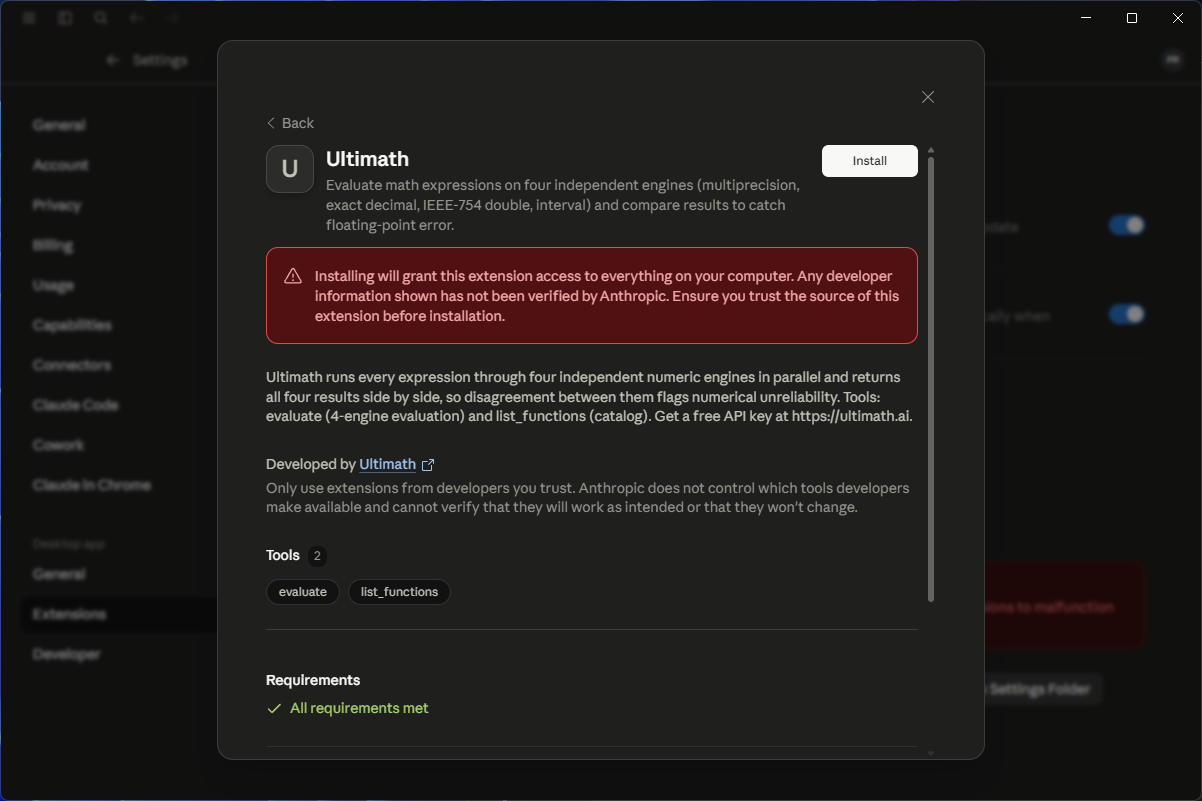
-
4
Paste your API key
In the Configure dialog, paste the key from ultimath.ai (it starts with
utev_), then click Save.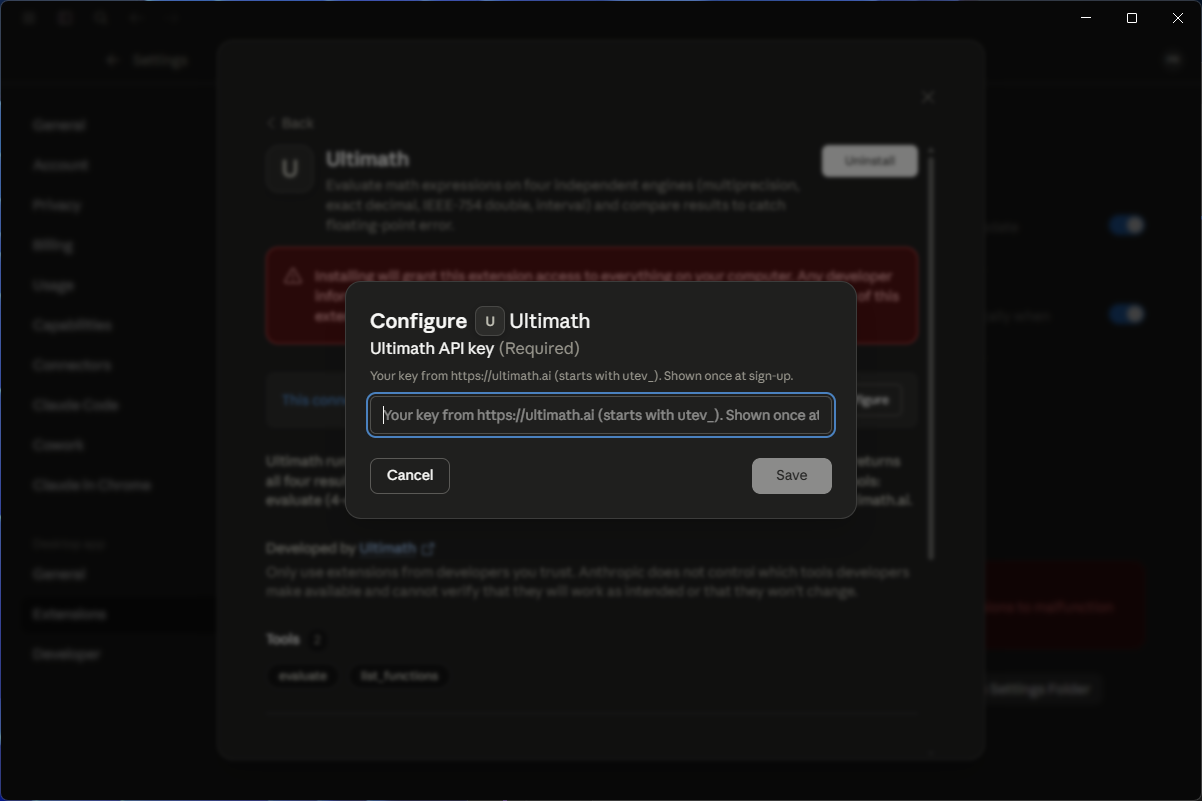
-
5
Enable it
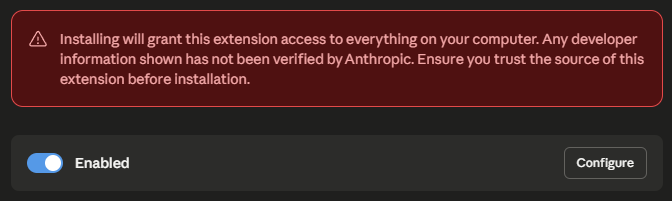
Flip the toggle to Enabled, then close the dialog. That's it — Ultimath is live.
-
✓
Try it
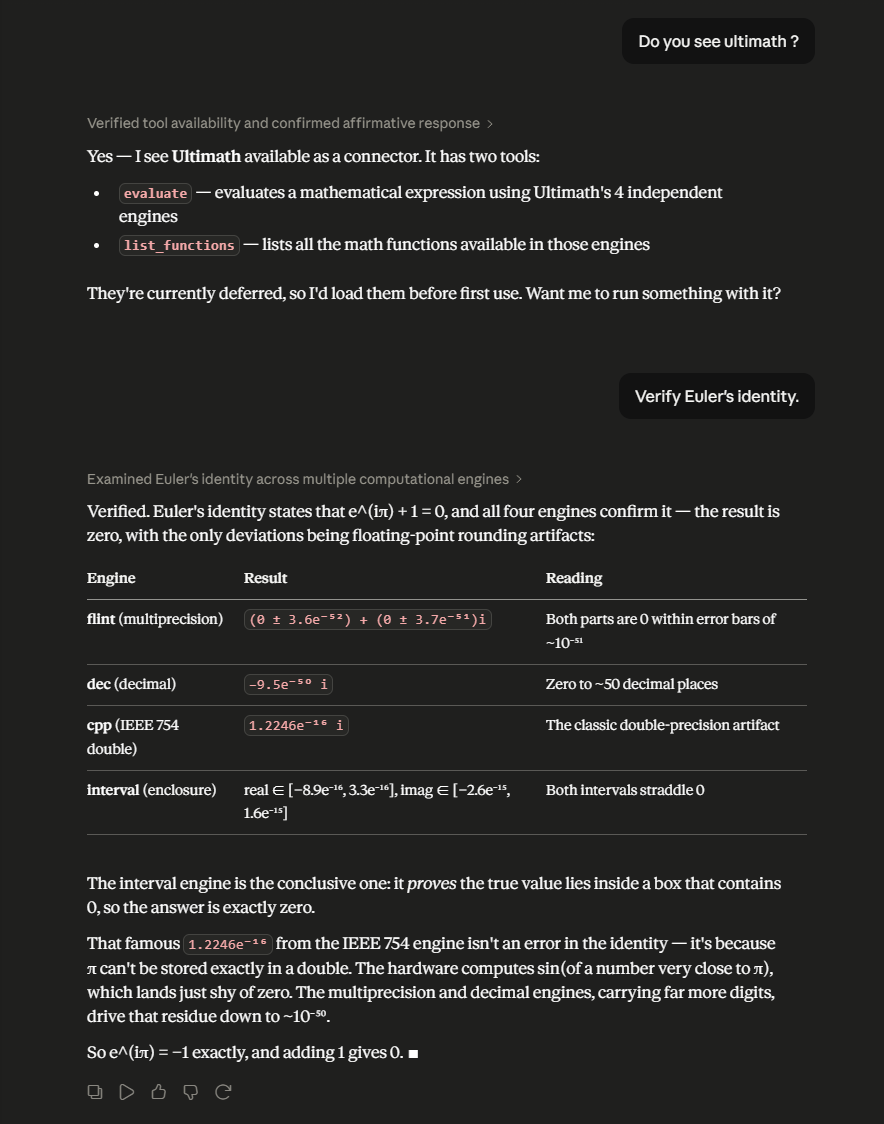
Ask Claude a math question. Ultimath runs the expression through eight engines in parallel — exact, symbolic, ball, interval and IEEE 754 — and flags any disagreement between them, so the numbers are checked, not guessed.
Prefer another client — Cursor, VS Code, LM Studio, Claude Code, Gemini CLI — or Linux? The install page has a one-click link or a ready-made command for each, with your key already filled in. For the official walkthrough, see Anthropic's local-MCP guide ↗.